

Nathan Hart
23 December 2021
How-To: Docker on Windows and Mac with Multipass
Update: there is now a more streamlined way to run Docker on Multipass – see this tutorial for more details. Original blog below:
If you’re looking for an alternative to Docker Desktop or to integrate Docker into your Multipass workflow, this how-to is for you.
Multipass can host a docker engine inside an Ubuntu VM in a manner similar to Docker Desktop. That Docker instance can be controlled either directly from the VM, or remotely from the host machine with no additional software required. This allows you to run Docker locally on your Windows or Mac machine directly from your host terminal.
Summary
In this tutorial, we will run the Docker Hello World container within a Multipass VM, from the host command line. To do so, we will:
- Install Multipass (if not already installed)
- Use cloud-init to:
- Create a Multipass VM
- Install docker engine on the VM
- Alias the docker command to the host command line
- Run the Docker Hello World container from the host terminal
Preparation
First, install Multipass by heading to our Multipass installation page and following the installation instructions there for your operating system.
Windows
We will start by running some cloud-init code to configure the VM. This creates a virtual machine running with the latest Ubuntu LTS (20.04 at the time of writing) installed. This machine is configured with 4 CPUs, 4GB of RAM, and 40GB of disk. If you think you’ll need different specs, you can modify these steps as shown here.
In PowerShell, run the following cloud-init code to create a new VM called docker-vm with docker engine installed:
@'
groups:
- docker
snap:
  commands:
  - [install, docker]
runcmd:
- adduser ubuntu docker
'@ | multipass launch --cloud-init - --disk 40G --mem 4G --cpus 4 --name docker-vm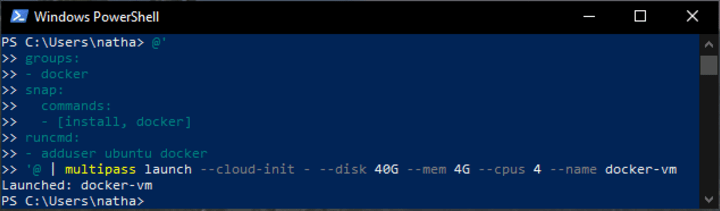
macOS
Multipass is a great option for docker on macOS, particularly for M1 Macs. The steps here are only slightly different than those for Windows.
We will start by running some cloud-init code to configure the VM. This creates a virtual machine running with the latest Ubuntu LTS (20.04 at the time of writing) installed. This machine is configured with 4 CPUs, 4GB of RAM, and 40GB of disk. If you think you’ll need different specs, you can specify the resources available to your VM as shown here.
In Terminal, run the following cloud-init code to create a new VM called docker-vm with docker engine installed:
multipass launch --cloud-init - --disk 40G --mem 4G --cpus 4 --name docker-vm <<EOF
groups:
- docker
snap:
  commands:
  - [install, docker]
runcmd:
- adduser ubuntu docker
EOF
Aliasing the docker Command
Once the VM has finished its installation process, it will automatically download and install docker on that VM. Our VM is now ready, but we currently can only access the docker instance from within the VM. For host-machine access, we will alias the docker command to the host as follows:
multipass alias docker-vm:dockerNow, we can run docker commands in the VM by first referencing multipass, e.g.
multipass docker run hello-worldWe can take things one step further, however, by adding Multipass to the PATH variable, which will eliminate the need for the multipass prefix. The output of the alias command gives the necessary steps, which should look like the following:
$ENV:PATH="$ENV:PATH;C:/Users/natha/AppData/local/multipass/bin"If, like me, you already have the docker cli on your machine, this aliased command may supersede your existing ‘docker’ command. Whichever command is listed first in the PATH will be used. I wanted to use both commands, so I chose the name ‘mpdocker’ for the aliased command to avoid conflicts. More info on aliasing commands can be found here.
Wrap-Up
By now, you should be able to run the docker command from the terminal on your host machine. To test that everything is working, try to run the docker command that you aliased in the previous step (docker, mpdocker, or the name you chose).
docker run hello-world
You should see the greeting message from Docker stating that the installation is running normally.
Congratulations! You have now set up an instance of docker running within a Multipass VM, controlled through the host command line.
Stay tuned for more guides on how to use Multipass as an alternative to Docker Desktop, including mounting volumes from the host, controlling docker through an SSH socket, and more!


